
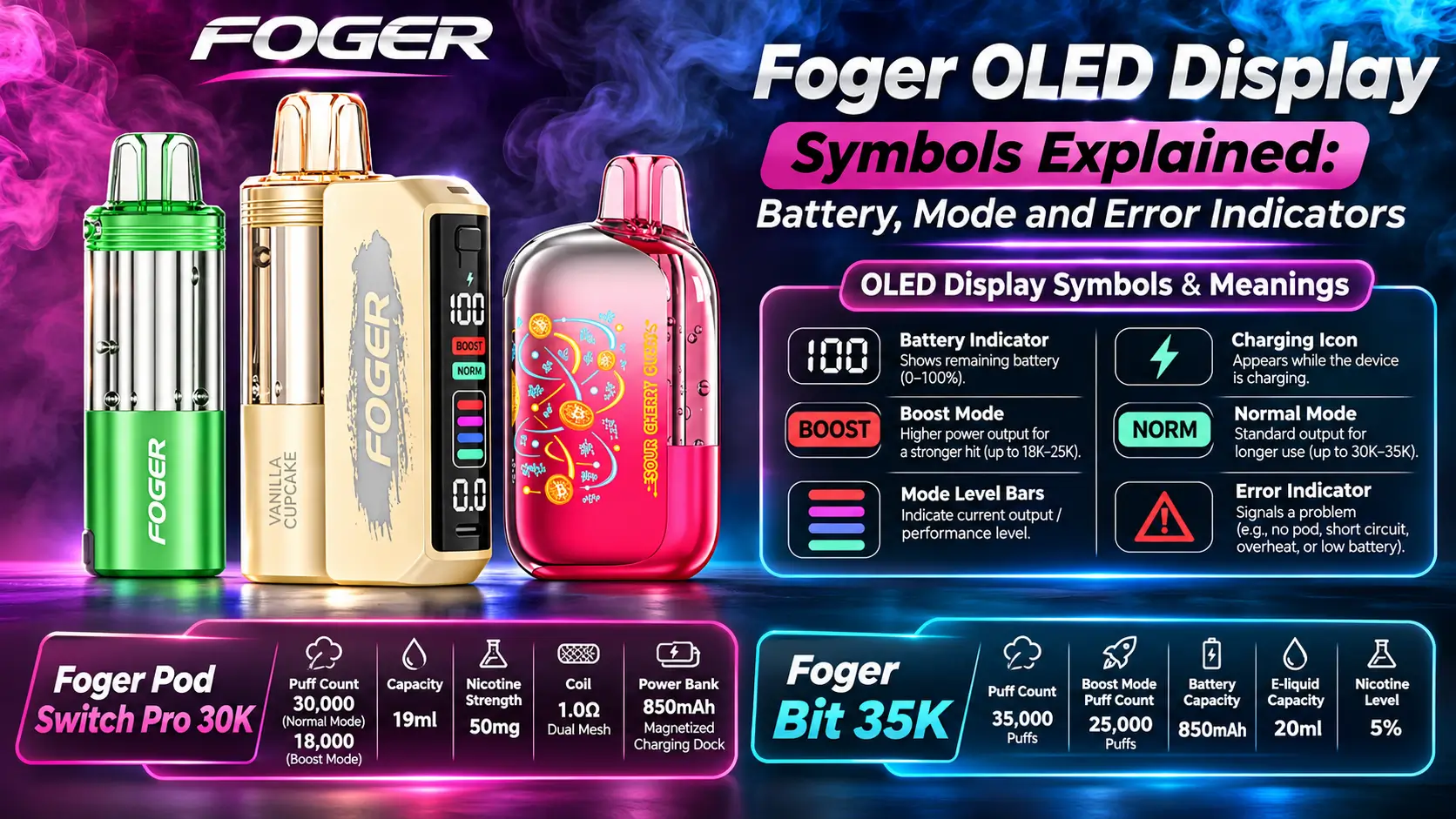
Foger OLED Display Symbols Explained: Battery, Mode and Error Indicators
Your Foger screen just flashed something unfamiliar. Here is what each battery, mode and error symbol means, what is normal, and when to stop using the device.
Short answer: the Foger OLED display symbols show battery level, charging status, mode and pod-related errors. A battery icon with a lightning bolt means charging. A flashing screen usually means low power or a weak pod connection. Most warnings clear with a charge and a clean reseat.
You pick up your device, take a draw, and the screen flashes something you have never seen before. Mild panic follows. Relax, it is almost always a battery or connection hiccup, not a dead device.
This guide walks through every Foger OLED display symbol we can reasonably document for the Switch Pro 30K and the Bit 35K. It also explains what is confirmed, what users commonly report, and when to stop and call your retailer.
Age notice: Foger products contain nicotine, an addictive chemical, and the minimum legal purchase age in the US is 21. This guide is for adult users only.
Quick Specs Before We Decode the Screen
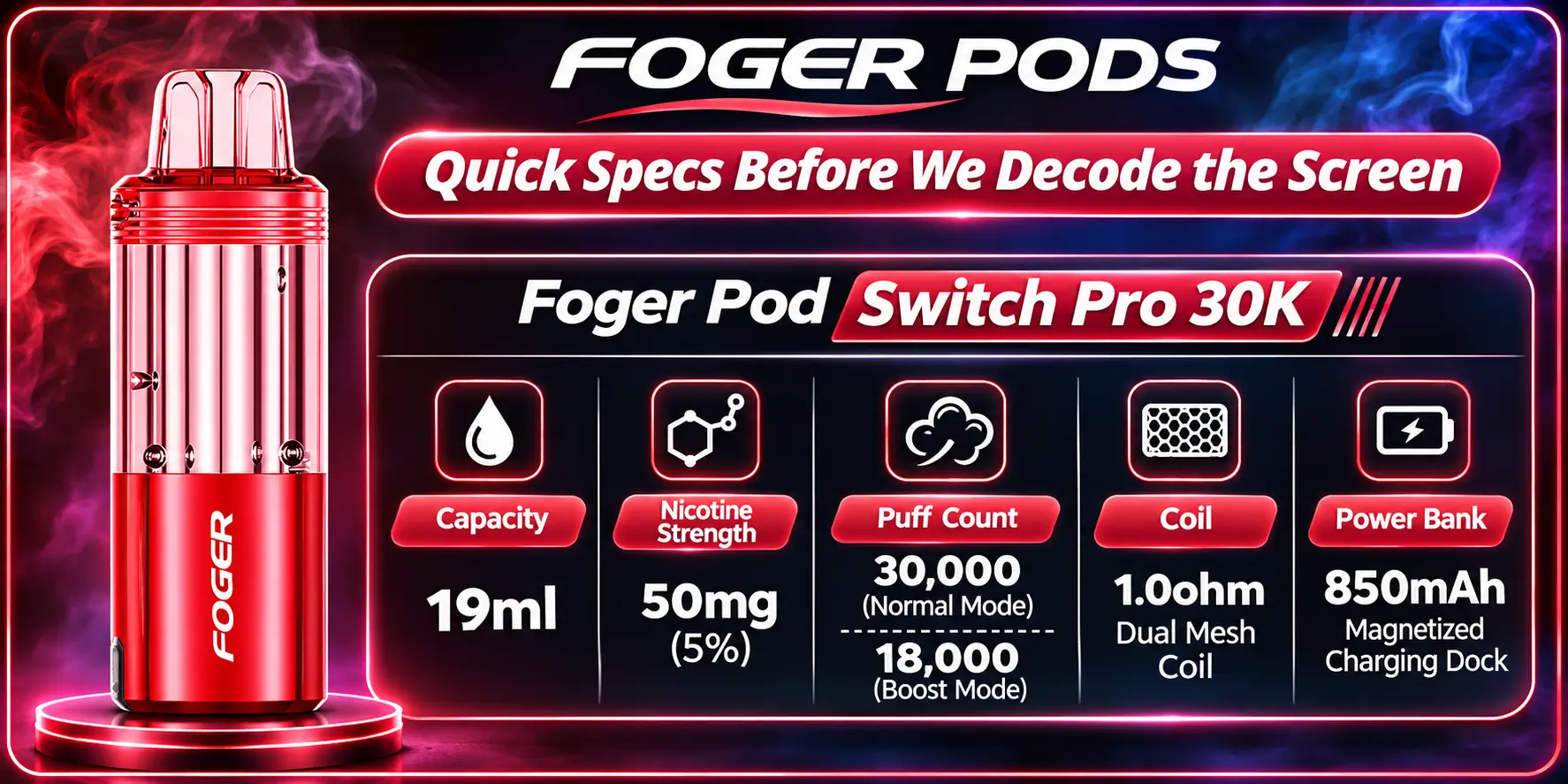
Short answer: The numbers below explain why the display behaves the way it does. A big battery dock, a dual mesh coil and two power modes all feed what you see on screen.
| Spec | Detail |
|---|---|
| Capacity | 19ml |
| Nicotine strength | 50mg (5%) |
| Puff count | 30,000 in Normal Mode, 18,000 in Boost Mode |
| Coil | 1.0ohm dual mesh coil |
| Power bank | 850mAh magnetized charging dock |
Boost Mode trades puffs for stronger output, which is why the count drops from 30,000 to 18,000. If you want the full breakdown of ratings and real-world use, read our Foger Pod Review hub alongside this guide.
List Each Verified Screen Symbol
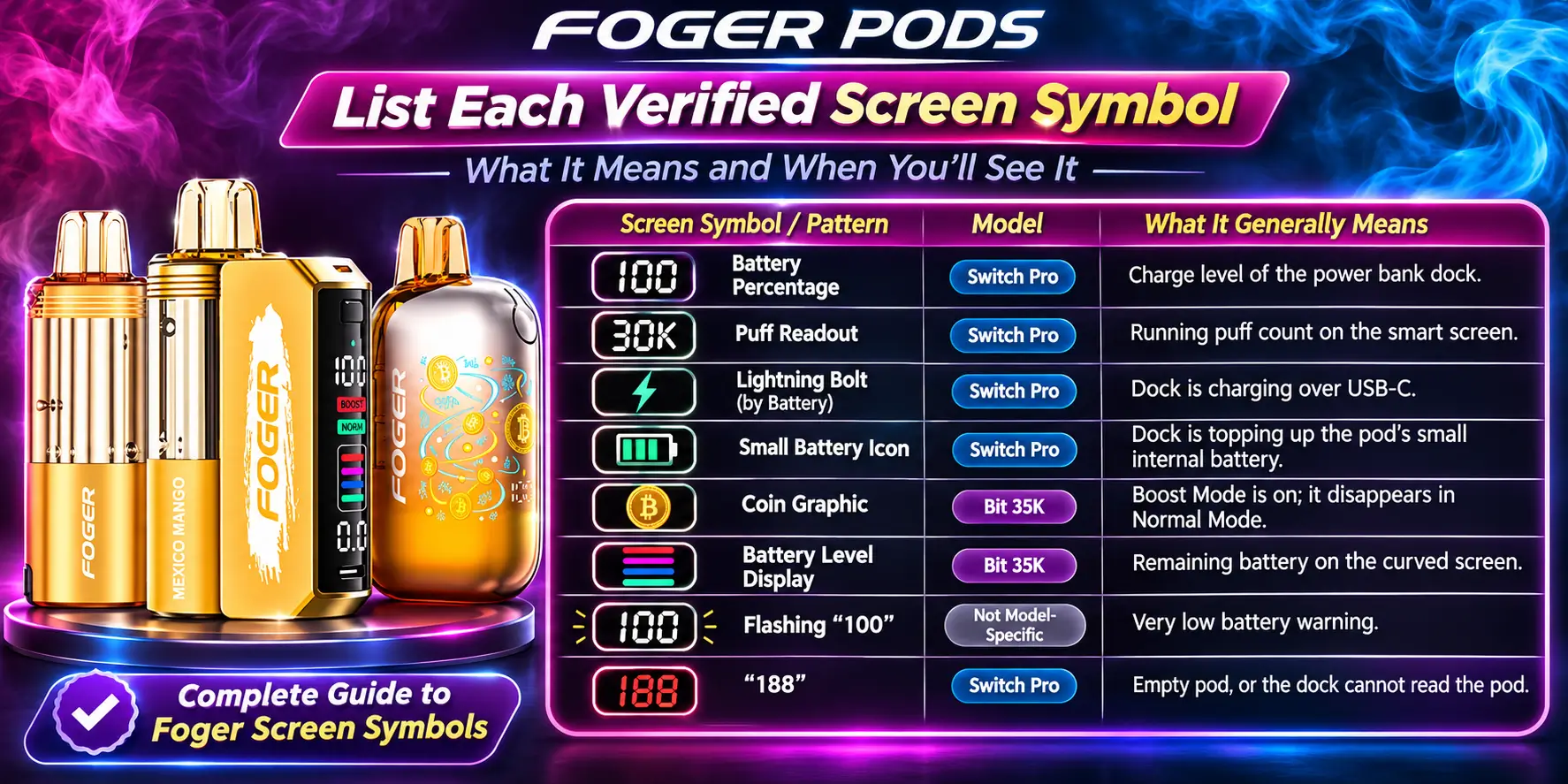
Short answer: Foger does not publish one official chart of every icon. So we sort each symbol into two groups: confirmed on Foger product pages, and commonly reported by retailers and users. Treat the second group as helpful guidance, not gospel.
| Symbol or pattern | Model | What it generally means | Status |
|---|---|---|---|
| Battery percentage | Switch Pro | Charge level of the power bank dock | Confirmed (smart screen) |
| Puff readout | Switch Pro | Running puff count on the smart screen | Confirmed (smart screen) |
| Lightning bolt by battery | Switch Pro | Dock is charging over USB-C | Commonly reported |
| Small battery icon | Switch Pro | Dock is topping up the pod's small internal battery | Commonly reported |
| Coin graphic | Bit 35K | Boost Mode is on; it disappears in Normal Mode | Listed by Foger |
| Battery level display | Bit 35K | Remaining battery on the curved screen | Confirmed |
| Flashing "100" | Not model-specific | Very low battery warning | Commonly reported |
| "188" | Switch Pro | Empty pod, or the dock cannot read the pod | Commonly reported |
What Does the Battery Icon Show?
On the Switch Pro, the percentage reflects the power bank, not the pod. That is why your screen can show 60% while the pod itself is nearly empty. Think of the dock as the fuel tank and the pod as the cup you pour from.
What Does the Mode Symbol Show?
On the Bit 35K, a coin graphic signals Boost Mode. No coin means you are in Normal Mode. If your puff count feels like it is vanishing, check for that icon first.
Explain Normal vs Warning States
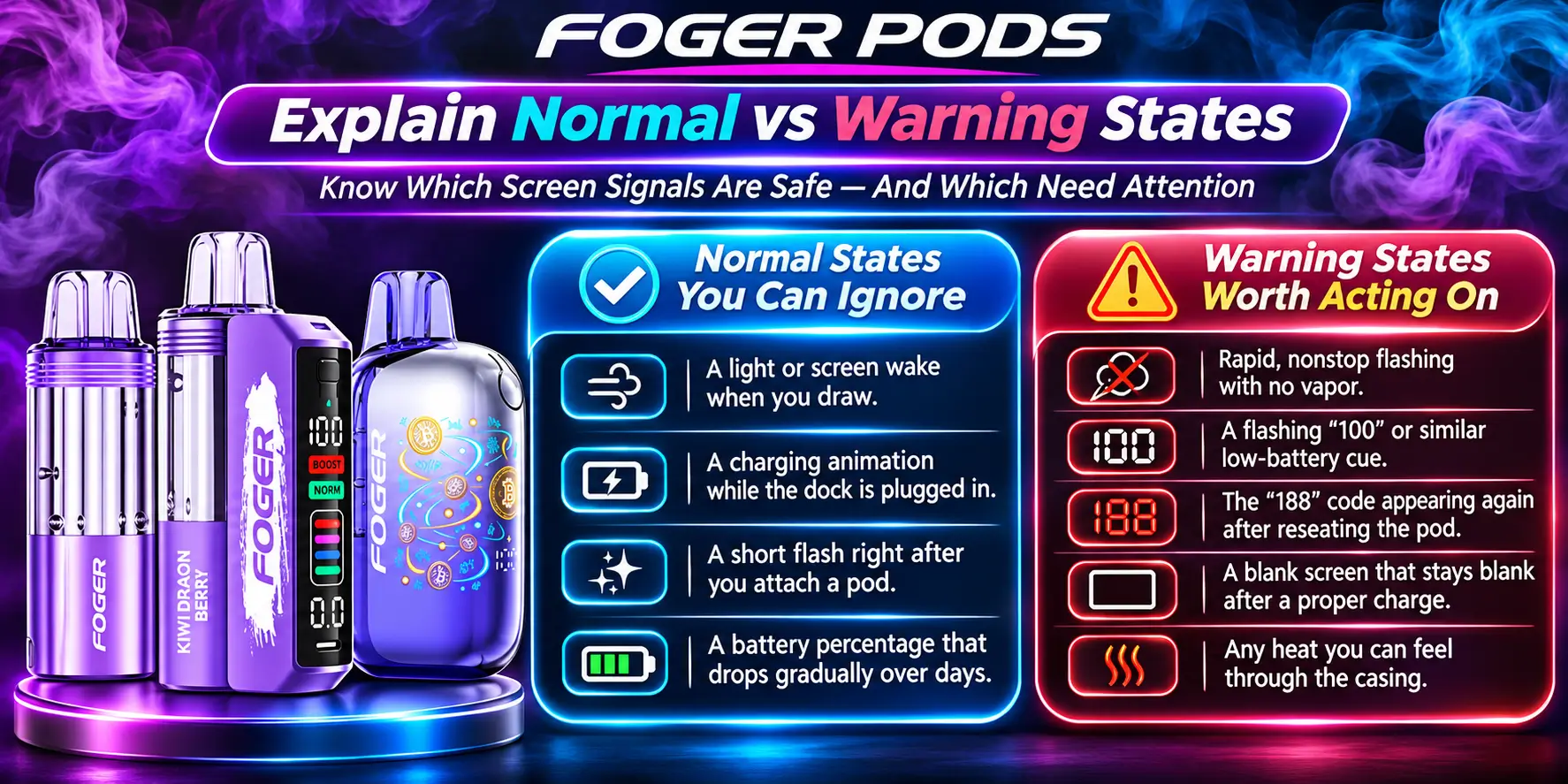
Short answer: A normal state is steady, brief and tied to something you just did, like drawing or plugging in. A warning state repeats, flashes without a draw, or comes with no output. Timing and repetition are the clues.
Normal States You Can Ignore
- A light or screen wake when you draw.
- A charging animation while the dock is plugged in.
- A short flash right after you attach a pod.
- A battery percentage that drops gradually over days.
Warning States Worth Acting On
- Rapid, nonstop flashing with no vapor.
- A flashing "100" or similar low-battery cue.
- The "188" code appearing again after reseating the pod.
- A blank screen that stays blank after a proper charge.
- Any heat you can feel through the casing.
Battery drain also changes how often you see warnings. If you are curious how long a full charge should last, our Foger Pod Battery Life guide covers realistic expectations.
Show Screenshots by Model
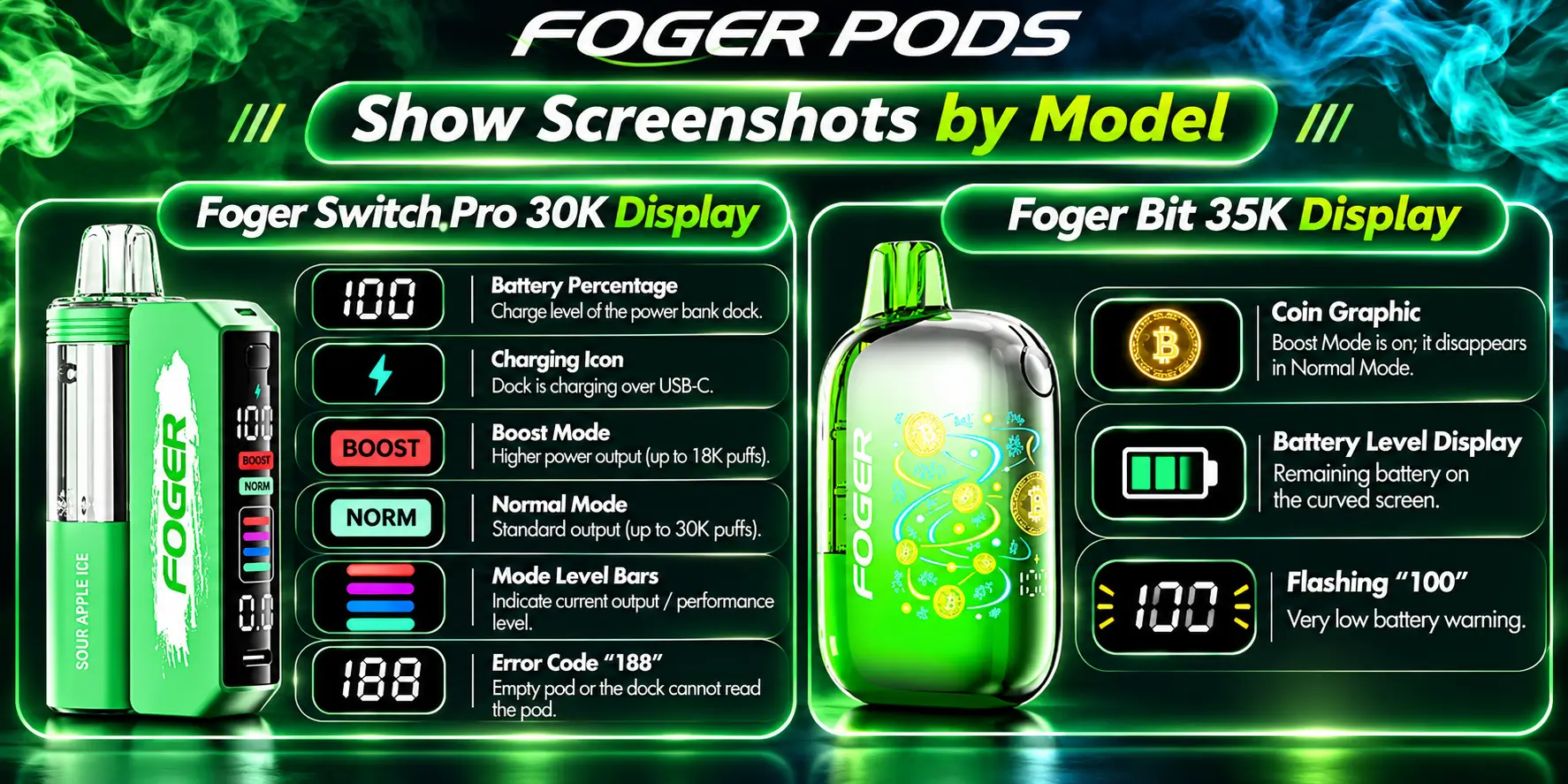
Short answer: Seeing the screen beats reading about it. Below are the display states for each model. Always compare against your own device, since firmware and batches can differ slightly.
Foger Switch Pro 30K Display
The Switch Pro 30K screen shows your dock's battery percentage and puff count. A lightning bolt beside the battery means it is charging, so glance here first before assuming something is wrong.
Foger Bit 35K Display
Not sure which device you own? The Foger Pods Full Product Lineup page shows each model side by side so you can match the screen to the right guide.
Explain What the Manual Says
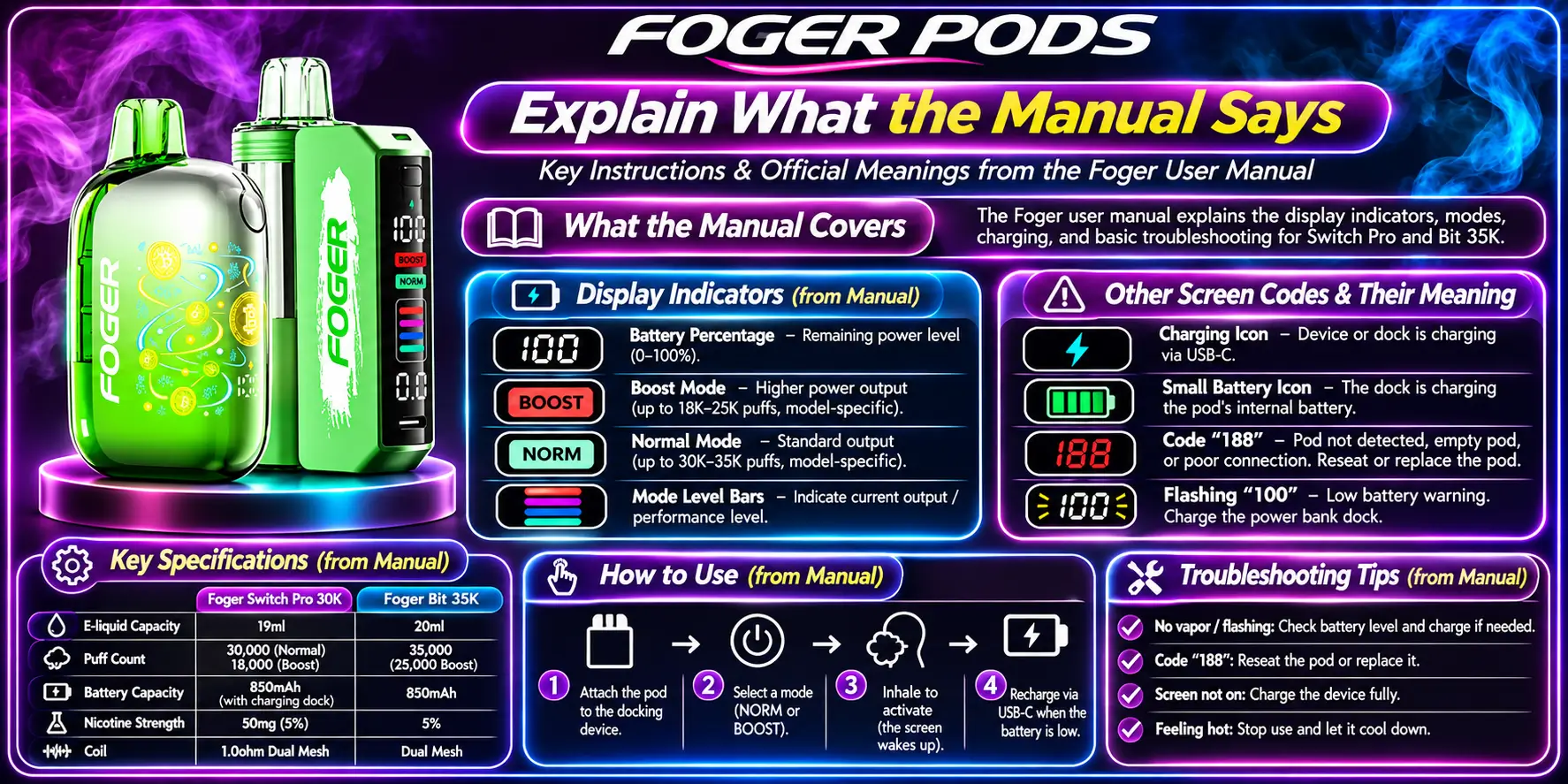
Short answer: The official insert is short and focuses on charging and safe use, not a full icon dictionary. That is why so many owners end up searching for symbol meanings online.
Here is what we can say with confidence. Foger tells users not to disassemble the dock or push any liquid into the pin cavity. Foger also markets the Switch Pro as a modular system with a magnetized charging dock, and the Bit 35K as a sealed disposable with nothing to detach.
Where the manual is silent, we rely on consistent reports from retailers and users, and we say so. If a symbol is not listed in your insert, assume it points to power or connection, not a hidden fault.
Pod questions come up a lot here, especially which pods fit which dock. Our Foger Switch Pro Compatibility guide covers what pairs with what, which also explains many "pod not detected" screens.
Safe Response to Warning Indicators
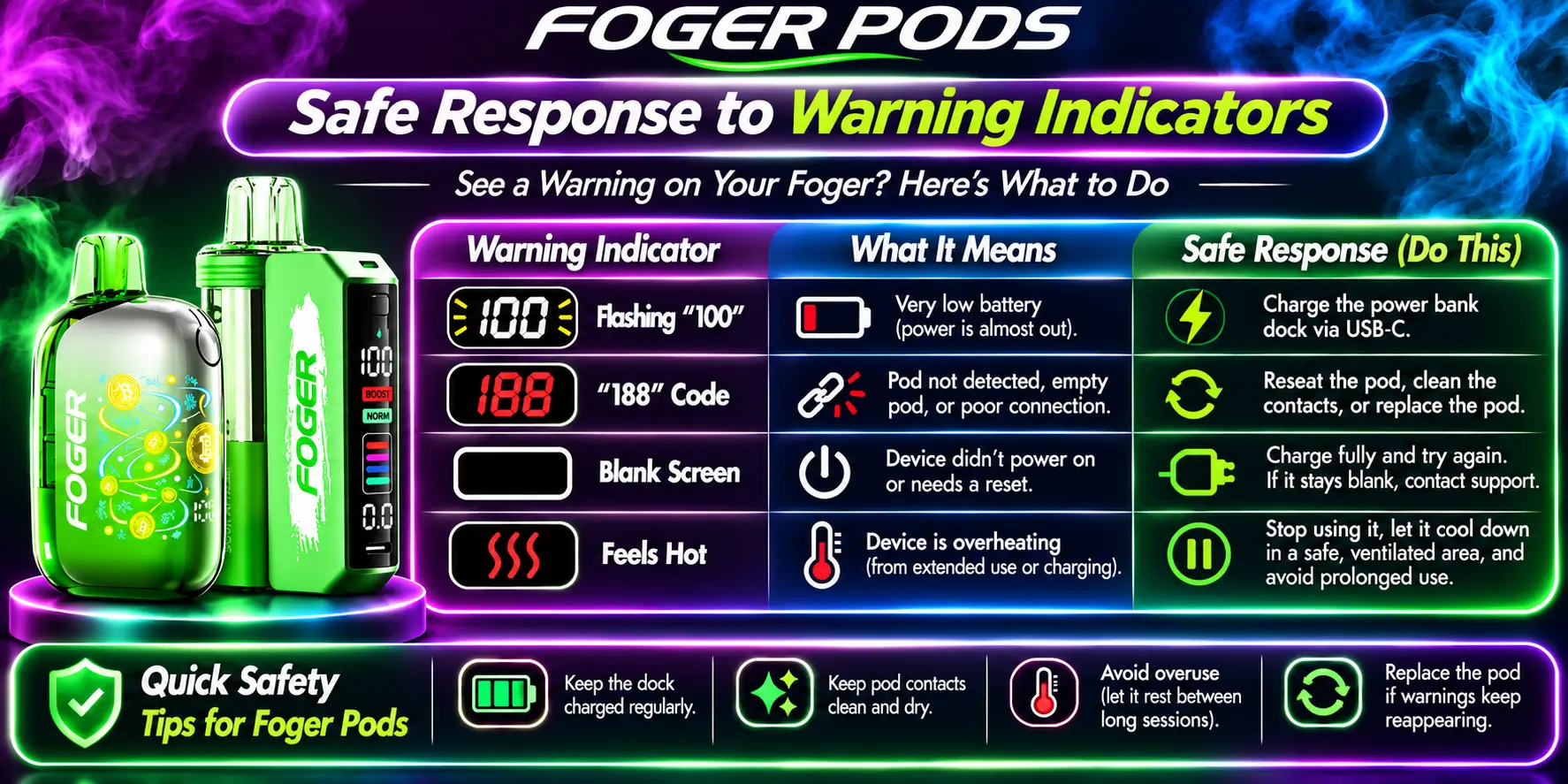
Short answer: Stop drawing, charge, clean, reseat. That four-step routine solves most Foger display warnings. Do it in order and do not skip the cooling pause.
- Stop and let it rest. Pause for about a minute, longer if the device feels warm.
- Charge on a hard, clear surface. Use a known-good USB-C cable and stay nearby while it charges.
- Clean the contacts. On the Switch Pro, remove the pod and wipe the pod contacts gently. Dry swab only on the dock pins.
- Reseat the pod. Press it straight down until the magnet clicks, then try a draw.
- Swap the pod. If "188" returns, try a different pod to see whether the pod or dock is the problem.
Are Foger Pods Safe to Keep Using After a Warning?
If the warning clears and the device stays cool, usage can continue normally. The FDA's guidance on vape battery safety recommends using the device as designed, charging on a clear hard surface away from anything flammable, avoiding overnight charging, and replacing anything damaged or wet. You can read it on the FDA's vape battery safety page.
For a wider look at risk, including nicotine itself, see our explainer on Are Foger Pods Safe. And remember: no vape is risk-free, and nicotine is addictive.
When to Stop Using and Contact the Retailer
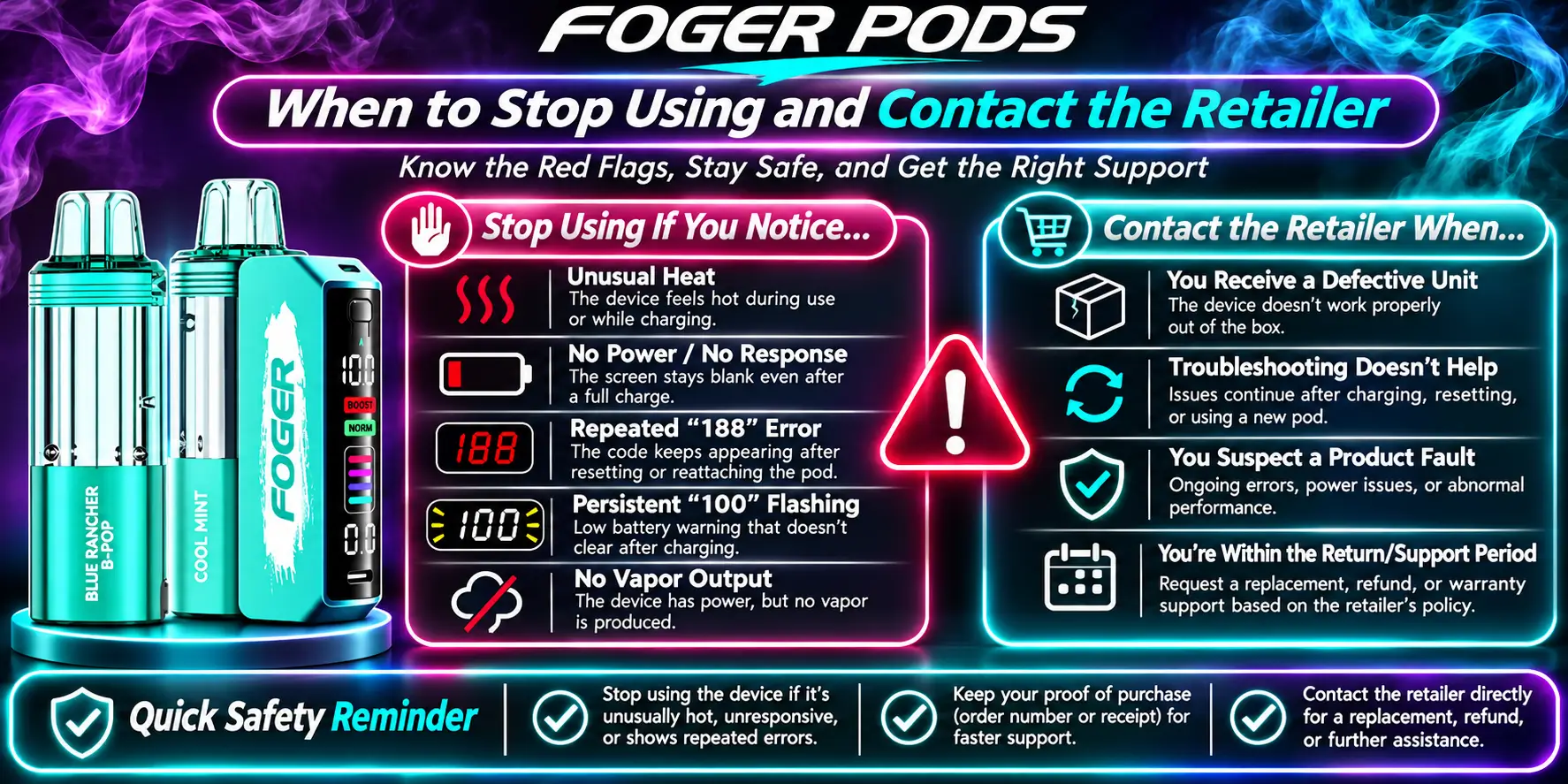
Short answer: Stop using the device if it gets hot, swells, smells like burning, leaks, or keeps flashing after you have charged, cleaned and reseated. These are hardware issues, not display quirks.
- The casing feels hot or looks bulged.
- You see smoke, a burning smell or liquid near the charging port.
- The screen stays blank after at least 30 minutes on a good cable.
- "188" or another code returns with several different pods.
- The dock does not charge on two different cables and power sources.
Then contact the store you bought from, and do it quickly. Warranty and replacement windows are often short, sometimes only days after delivery. Keep your order number, a photo of the screen and a short video of the problem.
Not sure who sold you the device? Check our Where to Buy Foger Pods page for verified retailers. If you bought in person, our Foger Pods Near Me guide explains how to find and question local shops.
One more tip: counterfeit devices are a known problem in vaping, and fake units can show odd or inconsistent symbols. If the screen looks different from every guide, authenticity may be the real question.
Foger Pods for Beginners: Reading the Screen in Week One
Short answer: New users cause most "error" scares by mistake: pods not fully seated, a dock left uncharged, or Boost Mode switched on without noticing. A two-minute habit check fixes nearly all of it.
If you are just starting, our Foger Disposable Pods page explains how the disposable format differs from the modular kit. Disposables like the Bit 35K have fewer moving parts, so fewer symbols to worry about.
- Charge the dock fully before the first use.
- Seat the pod until you feel the magnet click.
- Glance at the screen for a mode icon before assuming something is wrong.
- Keep the charging port free of lint.
Flavor choice does not change the display, but it does change your experience. Browse the Foger Pods Flavors list once your device is running smoothly.
Does the Display Change With Puff Count or Savings?
Short answer: The screen does not track money, but it does help you track use. The Foger Pods Puff Count is rated at 30,000 in Normal Mode and 18,000 in Boost Mode, so the mode you choose directly shapes how long a pod lasts.
That rating is a manufacturer maximum, not a promise. Real puffs vary with draw length, frequency and temperature. Treat the number as a ceiling and the screen as your reality check.
If you are stocking up, check current offers first. Our Foger Pods Coupon Codes page lists active discounts so you do not pay more than you need to.
Verdict
Short answer: Most Foger OLED display symbols are simple: battery level, charging, mode and pod detection. If a warning appears, charge, clean and reseat. If it keeps coming back or the device gets hot, stop and contact your retailer.
Learn three things and you will rarely feel lost: the percentage is your dock, the coin icon means Boost Mode, and "188" points at the pod connection. Everything else is usually battery or contact trouble.
Be honest with yourself about safety too. A screen warning is the device asking for attention. Give it a break, give it a clean contact, and keep it away from heat. Your fingers and your furniture will thank you.
Ready to Choose Your Foger Device?
Compare models, check availability and buy from a verified retailer. Must be 21+.
Buying Guide →FAQs
1. What do the symbols on a Foger screen mean?
They show battery level, charging status, mode and pod-related alerts. On the Switch Pro you will see battery percentage and puff count. On the Bit 35K you will see battery level and a coin icon during Boost Mode. Foger publishes no full icon chart, so some meanings come from consistent user and retailer reports.
2. What does a flashing icon mean?
Usually low battery or a weak connection between the pod and the dock. Charge the device, clean the contacts and reseat the pod. If it keeps flashing, the device feels hot, or nothing works, stop using it and contact your retailer.
3. What does the battery icon show?
On the Switch Pro, it shows the charge of the power bank dock, not the pod. A lightning bolt beside it means the dock is charging. On the Bit 35K, it shows the remaining battery of the whole device.
4. What does "188" mean on a Foger?
It is commonly reported as an empty pod or a pod the dock cannot read. Check the e-liquid window, clean the contacts, reseat the pod and try a different one. Pods are not refillable, so replace an empty pod. If 188 persists with several pods, the dock may have a hardware fault.
5. Is it safe to keep using my Foger after a warning?
Only if the warning clears and the device stays cool. Follow the FDA's battery safety tips: charge on a clear hard surface, avoid overnight charging and never use a damaged unit. Stop immediately if you notice heat, swelling, leaking or a burning smell.
This article is for adult nicotine users aged 21+ and is general guidance, not medical or official manufacturer advice. Nicotine is addictive. Verify symbol meanings against your own device and the insert that came with it.